

Autopay Setup
Q: How do I set up Direct Debit Autopay?
There are several ways to set up Direct Debit with GoCardless:
- Via Email in GoCardless Dashboard
Customers can be added directly through the GoCardless dashboard using their email address. Please email [email protected] if you want to receive the link directly. - Via Link from the First Invoice
New customers can click the link on their first invoice, which takes them to the Customer Authorization Form to set up GoCardless autopay. - Via the “Pay Now” Button on Your Invoice. When a customer clicks Pay Now, they will see the option to set up autopay using Stripe (credit card) or GoCardless (Direct Debit).
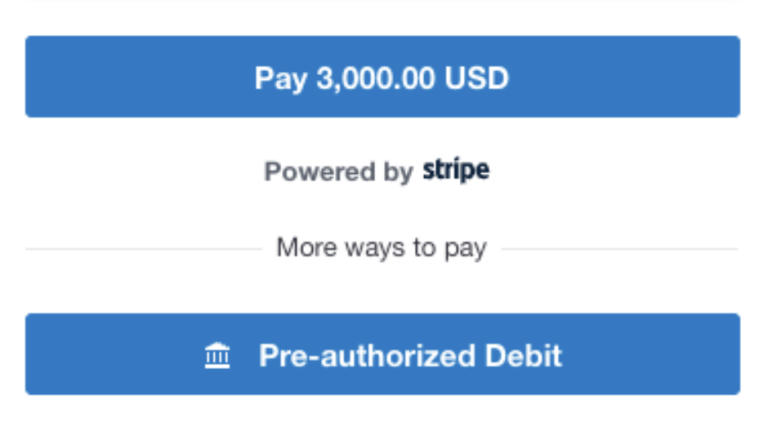
Note: If both Stripe and GoCardless are set up, Stripe will be the primary payment method. Customers must cancel their Stripe autopay setup to make GoCardless the primary payment service.
Additional Information
A PDF guide with detailed instructions is also available for download:
Q: How do I know if my Direct Debit Autopay is active?
When autopay is successfully set up, your invoice will display a confirmation banner. You will also receive an email confirming that autopay is active.
Q: How do I update my payment information?
Only the customer/subscriber can update their Direct Debit information in GoCardless. Log in to your account or follow the link in your invoice to manage your payment details. If assistance is needed, please email [email protected].
Q: What happens if I cancel services after setting up Direct Debit?
If you cancel services, any pending payment scheduled via autopay will still be processed. Future invoices for canceled services will not be generated.
Q: Is Direct Debit available for all invoices?
Yes. Direct debit is applied at the account level, so all invoices issued in the currency that you have set up will be paid.
Tip:
Treat your autopay setup as part of your ongoing payment management. Regularly check your invoices and account to ensure everything is up to date and functioning as expected.
Additional questions or requests for assistance, please contact [email protected]